
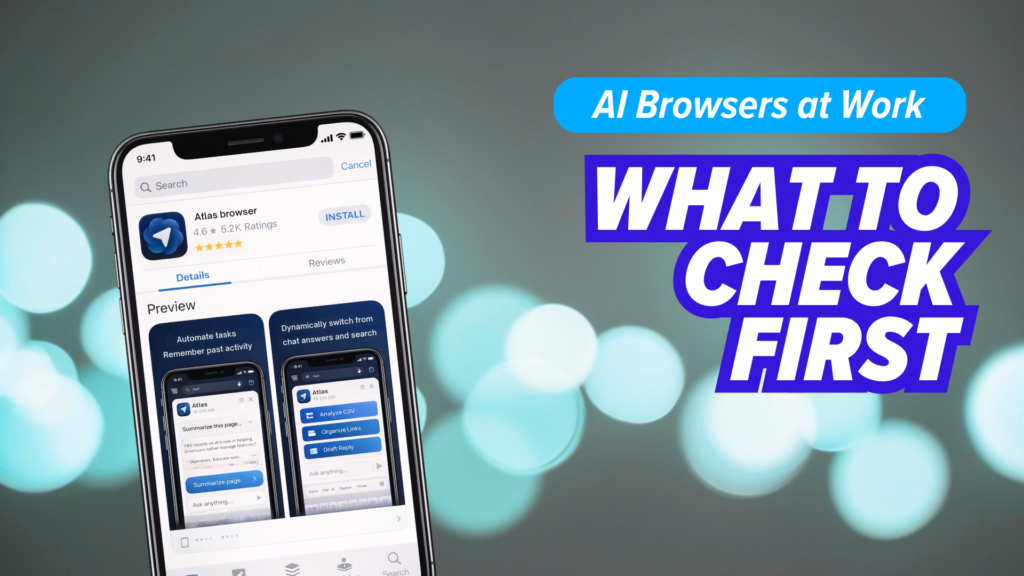
Have you ever stopped to think about what your browser is doing while you work?
For years, a browser was basically a viewer. It opened websites, stored a few cookies, and kept your bookmarks in one place.
AI-enabled browsers (like Google Chrome with Gemini, Microsoft Edge with Copilot, OpenAI’s ChatGPT Atlas and others) change that job description.
Instead of just showing you a page, these browsers and built-in assistants can read what’s on the page, summarize it, rewrite it, pull out key details, translate content, and sometimes even take actions for you. That can save real time. It can also create a new path for sensitive information to leave your environment.
New tech is usually helpful first, risky second. AI browsers are a good example of why you need both in view.
Why AI browsers are different
An AI feature is only “smart” if it can see context. That context often includes:
- The text on the page you’re viewing
- What you type into forms
- Content in web apps like email, HR portals, claims systems, and patient or student platforms
- Files opened in browser tabs (PDFs, reports, exports)
- Session details that tell the browser you’re logged in
To produce summaries and actions, many AI features send page data to a cloud service for processing. Even when vendors have strong security programs, this is still a shift in your data flow. The question is not “Is the vendor safe?” It’s “Do we want this category of data leaving our control, under these settings, for these users, for these tasks?”
Where the risk shows up
1) Sensitive data can be included by accident.
If a staff member opens an AI sidebar while a client record, billing portal, or internal report is visible in another tab, the assistant may process what it can see. The tool cannot reliably know what your organization considers confidential. It only knows “this is on screen.”
2) Defaults often favor convenience.
Many tools are designed to reduce friction. That can mean features are on by default, sharing is easy, and guardrails require extra setup. In a business, “easy” is not always your friend.
3) Automation expands the blast radius.
Some AI features can interact with websites while users are logged in. That is great for productivity, but it also creates new security scenarios. A malicious webpage or a compromised site can try to manipulate the browser into doing something it should not, like revealing data or completing steps the user did not intend.
4) “Shadow AI” becomes normal quickly.
Even if you do not roll out an AI browser formally, people will try these tools on their own. If staff feel blocked by slow processes, they will look for shortcuts. That’s not a character flaw. It’s a signal that you need clearer rules and better enablement.
A practical rollout checklist
If you’re considering AI browsers or AI features inside browsers, start here:
Map where data goes.
- What content is sent to the AI service?
- Is processing always cloud-based, or can it be limited?
- Can you disable data sharing, history, or training use?
- Can you set different policies for different roles?
Decide who gets access first.
Pilot with a small group and exclude high-risk roles at the start (finance, HR, compliance-heavy teams) until controls and training are proven.
Set guardrails that match how you work.
- Define what information should never be used with AI features
- Require staff to close or move away from sensitive tabs before using AI tools
- Create a short “safe use” checklist people can actually remember
Manage it centrally.
If your IT team cannot enforce settings across devices, you will end up with inconsistent risk. Central policy control matters more than perfect written rules.
Train for real situations, not theory.
Show examples: “Here’s a claims screen. Here’s what not to do. Here’s what to do instead.” Make it part of normal security awareness, not a one-time slide deck.
Review compliance and contracts.
If you handle regulated or client-confidential data, confirm how AI browser use fits your obligations. Your policies should explicitly address this category of tooling.
AI browsers are not “good” or “bad.” They are powerful. That’s the point.
The risk comes when a tool designed to be helpful is introduced into a workplace without clear boundaries, centralized configuration, and staff habits that protect sensitive information.
If you want the time savings without the surprise data exposure, treat AI browser features like any other business tool: assess the risk, configure the controls, train the team, and monitor how it’s actually being used.
If you’d like help evaluating AI browser options, tightening the settings, or building a simple rollout plan your staff will follow, we can help.
 Web & Mobile Apps